> ## Documentation Index
> Fetch the complete documentation index at: https://docs.canadava.com/llms.txt
> Use this file to discover all available pages before exploring further.
# Linking SimBrief Account
> Connect your SimBrief and Navigraph account to vACA for automatic OFP generation, fuel planning, and seamless flight dispatch.
export const Checklist = ({title, items, icon}) => {
const [checked, setChecked] = useState(Object.fromEntries(items.map((_, i) => [i, false])));
const toggle = i => setChecked(prev => ({
...prev,
[i]: !prev[i]
}));
const done = Object.values(checked).filter(Boolean).length;
return
{icon && {icon}}
{title}
{done}/{items.length}
{items.map((item, i) => )}
;
};
## SimBrief Integration
[SimBrief](https://www.simbrief.com/home/) is an essential flight planning tool used by virtual pilots to create professional OFPs. Virtual Air Canada Airline has integrated SimBrief directly into our systems for a seamless flight planning experience.
SimBrief is provided by Navigraph and requires a Navigraph account for access. Creating a Navigraph account is free, and you can [register here](https://www.simbrief.com/home/).
## Seamless OFP Generation
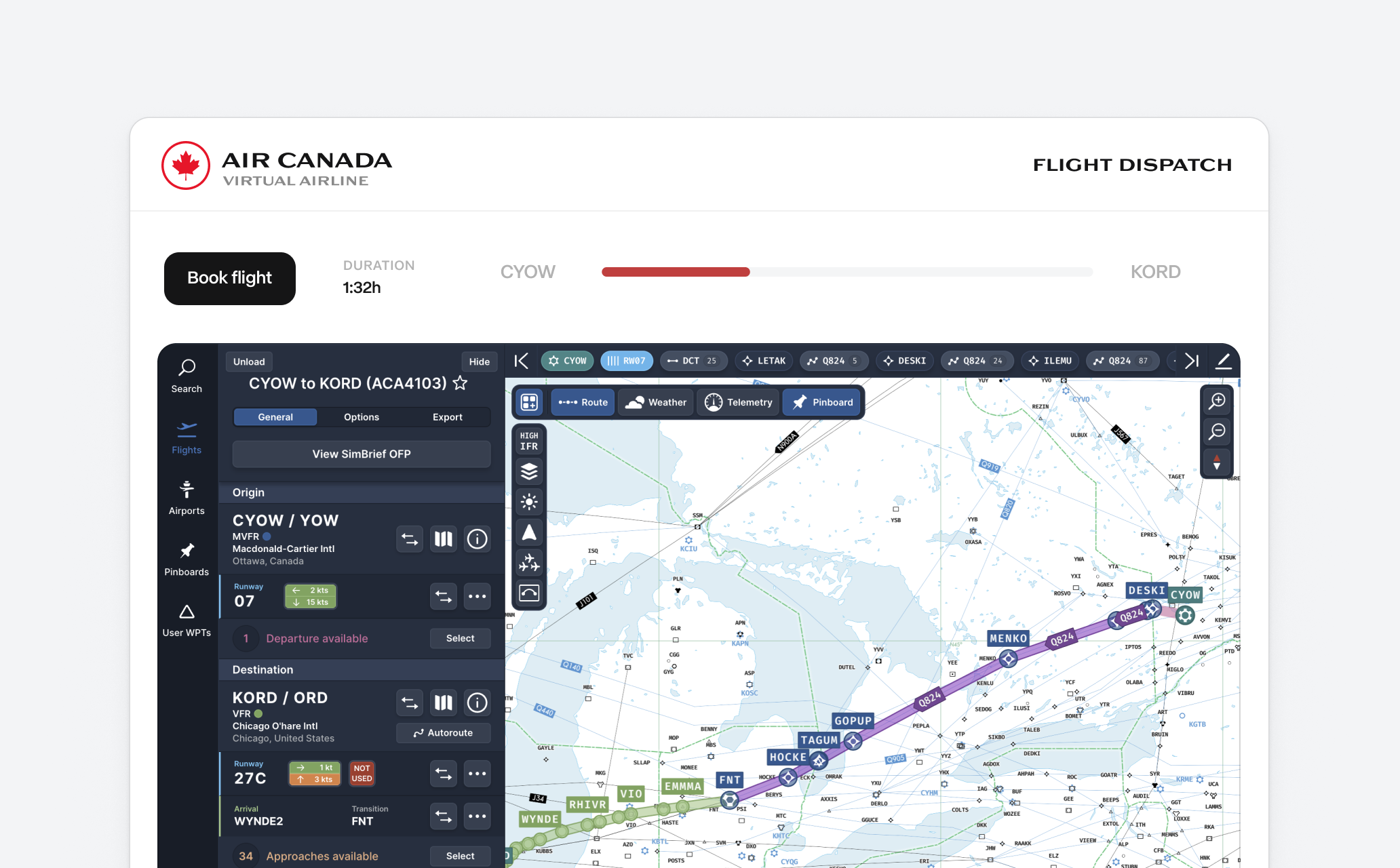
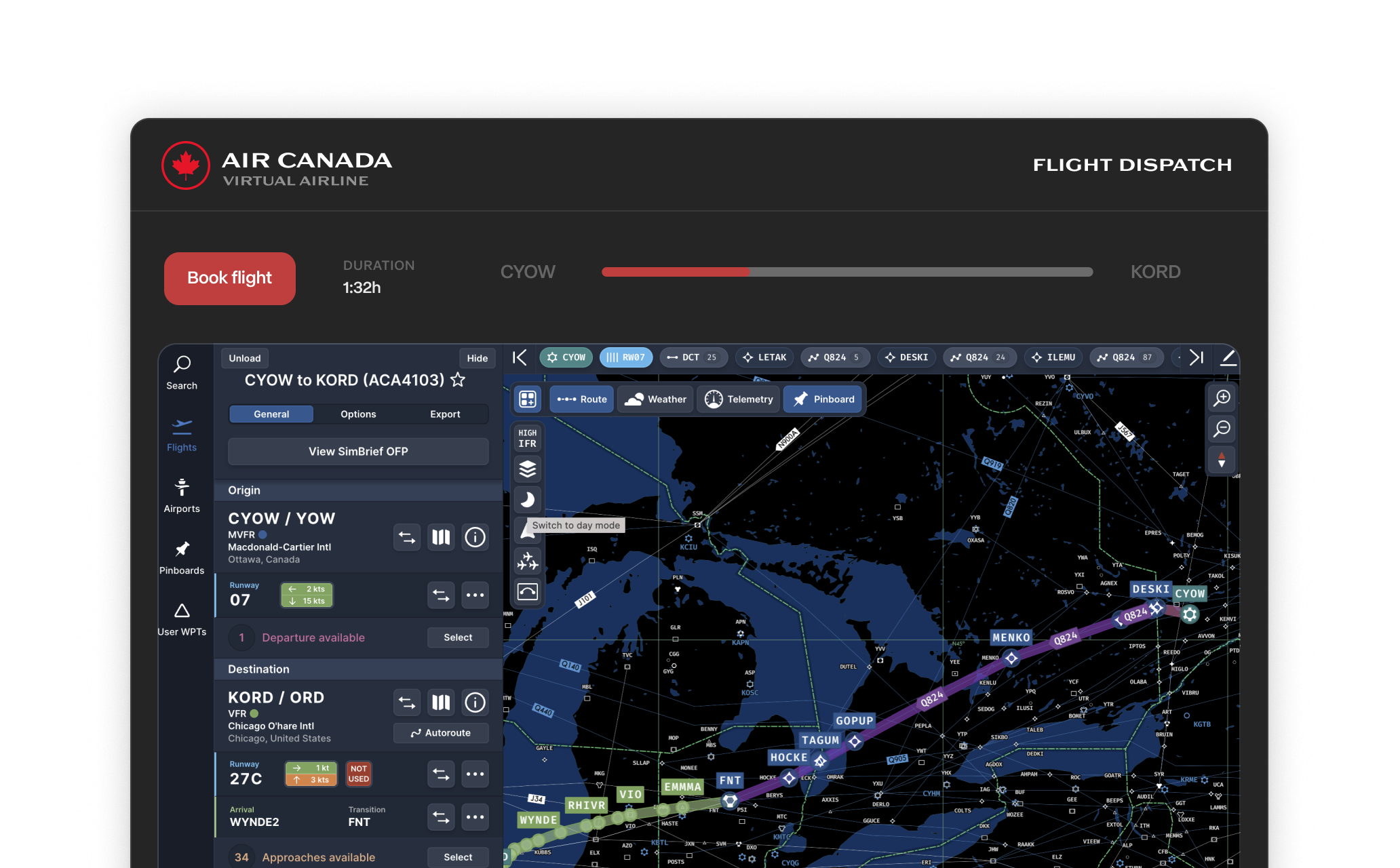
The most significant update from the pilot's perspective is the elimination of the SimBrief popup during dispatch. OFPs are now generated automatically behind the scenes on the Flight Dispatch page.
## Linking Your Navigraph Account
1. Log in to your Virtual Air Canada Airline account at [Pilot Portal](https://app.neoairline.io/portal/aca-cee46b174bfe)
2. Click on the User Dropdown in the top-right corner
3. Select "My vAMSYS Account"
Go to "Social, Online & 3rd Party" section in your account settings
1. Find the Navigraph integration option
2. Click "Connect Account"
3. You will be redirected to Navigraph's authorization page
4. Log in with your Navigraph credentials if prompted
5. Approve the connection request
1. After approval, you'll be redirected back to Virtual Air Canada Airline
2. Confirm that the account status shows as "Connected"
3. Your SimBrief username should be displayed
## Benefits of Integrated Flight Planning
Flight plans are generated automatically when you book a flight, eliminating the SimBrief popup during dispatch
You can now choose the SimBrief profile you want to use for your flight in the Pilot Portal
## Automatic Sync and Extended OFP Storage
Any modifications made to the OFP directly on SimBrief after dispatch are automatically synced back to vAMSYS. Additionally, OFP data is stored on vAMSYS for an extended duration, making crucial flight data easily accessible in the PIREP View for both Pilots and VA Staff in the future.
## SimBrief Features
SimBrief provides a comprehensive flight planning experience with features including:
* Detailed fuel calculations for over 120 aircraft types
* Access to real-world weather forecasts
* Current NOTAMs
* ETOPS planning
* Downloadable FMS files for various simulators and aircraft
* [FMS Downloader program](https://www.simbrief.com/home/) for automatic route installation
For a detailed look at how to use SimBrief, check out the [SimBrief User Guide](https://dispatch.simbrief.com/guide1).
The following tutorial videos are available for viewing on the Navigraph YouTube Channel:
* [Introduction to SimBrief](https://www.youtube.com/watch?v=WGxQ9XuAIIQ)
* [How to Make a Flight Plan in SimBrief](https://www.youtube.com/watch?v=fPzJA7B4bTY)
* [SimBrief Takeoff & Landing Calculations Tutorial](https://www.youtube.com/watch?v=X_Lw9YSzI9I)
These videos provide step-by-step guidance on using different features of the SimBrief platform and are highly recommended for both new and experienced users.
## Troubleshooting Connection Issues
If you encounter problems linking your Navigraph account:
1. Ensure your Navigraph subscription is active
2. Clear your browser cache and cookies
3. Try using a different browser
4. Disable any ad-blockers or privacy extensions temporarily
If your flight plan isn't generating automatically:
1. Verify your Navigraph connection in account settings
2. Check that you're using the correct Navigraph account with SimBrief access
3. Try disconnecting and reconnecting your account
4. Contact support if issues persist
## SimBrief/Navigraph Subscription Requirements
Virtual Air Canada Airline's integration works with both free and premium SimBrief accounts:
* **Free SimBrief accounts** can use the basic integration features with slightly outdated navigation data
* **Navigraph subscribers** get additional benefits like enhanced navigation data and charts updated every 28 days
While a premium Navigraph subscription is not required, it is recommended for the best experience and most up-to-date navigation data. Learn more about [Navigraph subscriptions](https://navigraph.com/products/subscriptions) for enhanced features.
## Need Help?
Get answers to your questions in our active Discord community
Contact our support team for personalized assistance
 ## SimBrief Integration
[SimBrief](https://www.simbrief.com/home/) is an essential flight planning tool used by virtual pilots to create professional
## SimBrief Integration
[SimBrief](https://www.simbrief.com/home/) is an essential flight planning tool used by virtual pilots to create professional