> ## Documentation Index
> Fetch the complete documentation index at: https://docs.canadava.com/llms.txt
> Use this file to discover all available pages before exploring further.
# My Rosters
> Create and track personal flight rosters in VACA Pilot Hub - generate multi-leg programs and complete them at your own pace.
 ## Personal Rosters
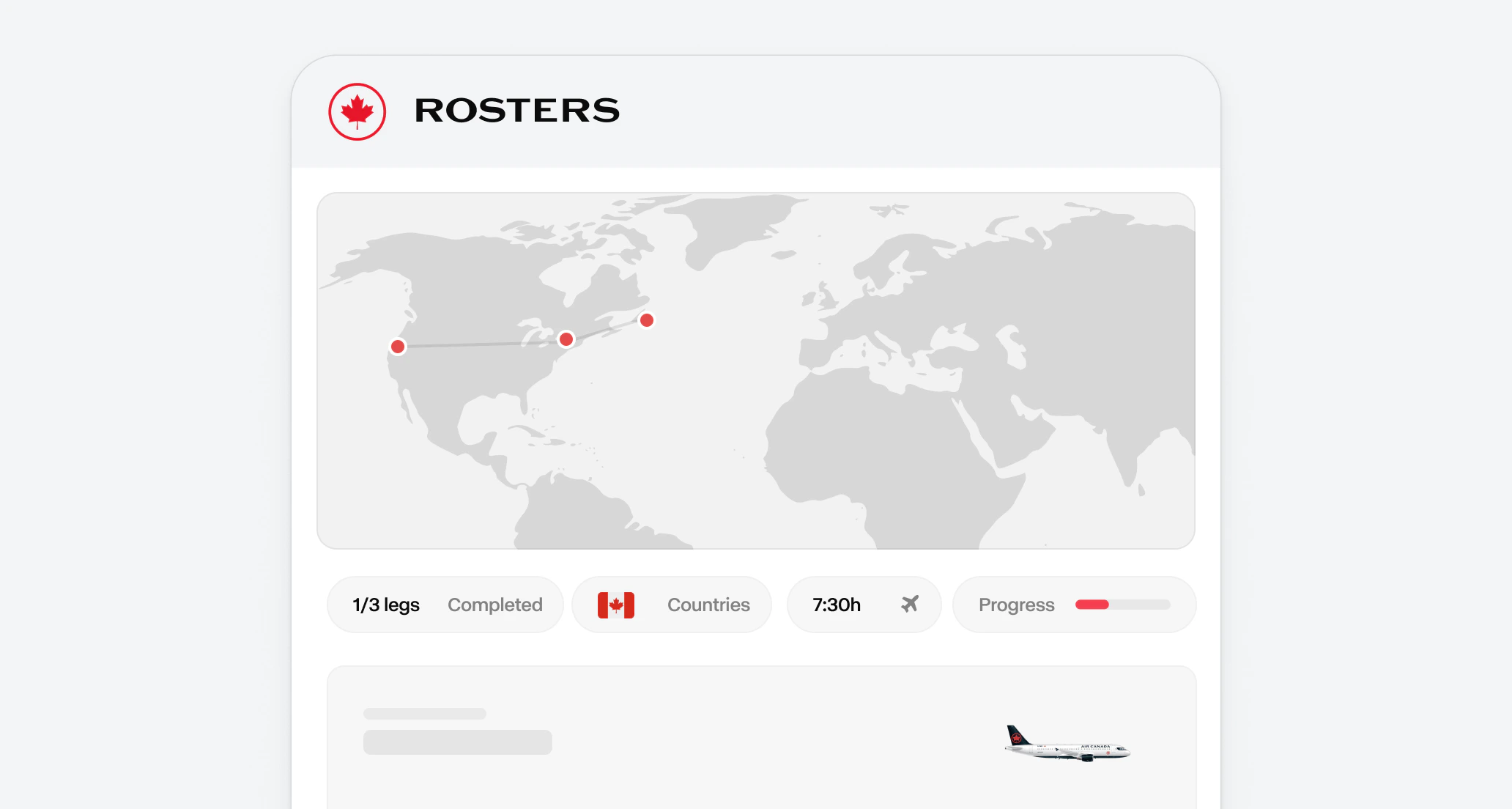
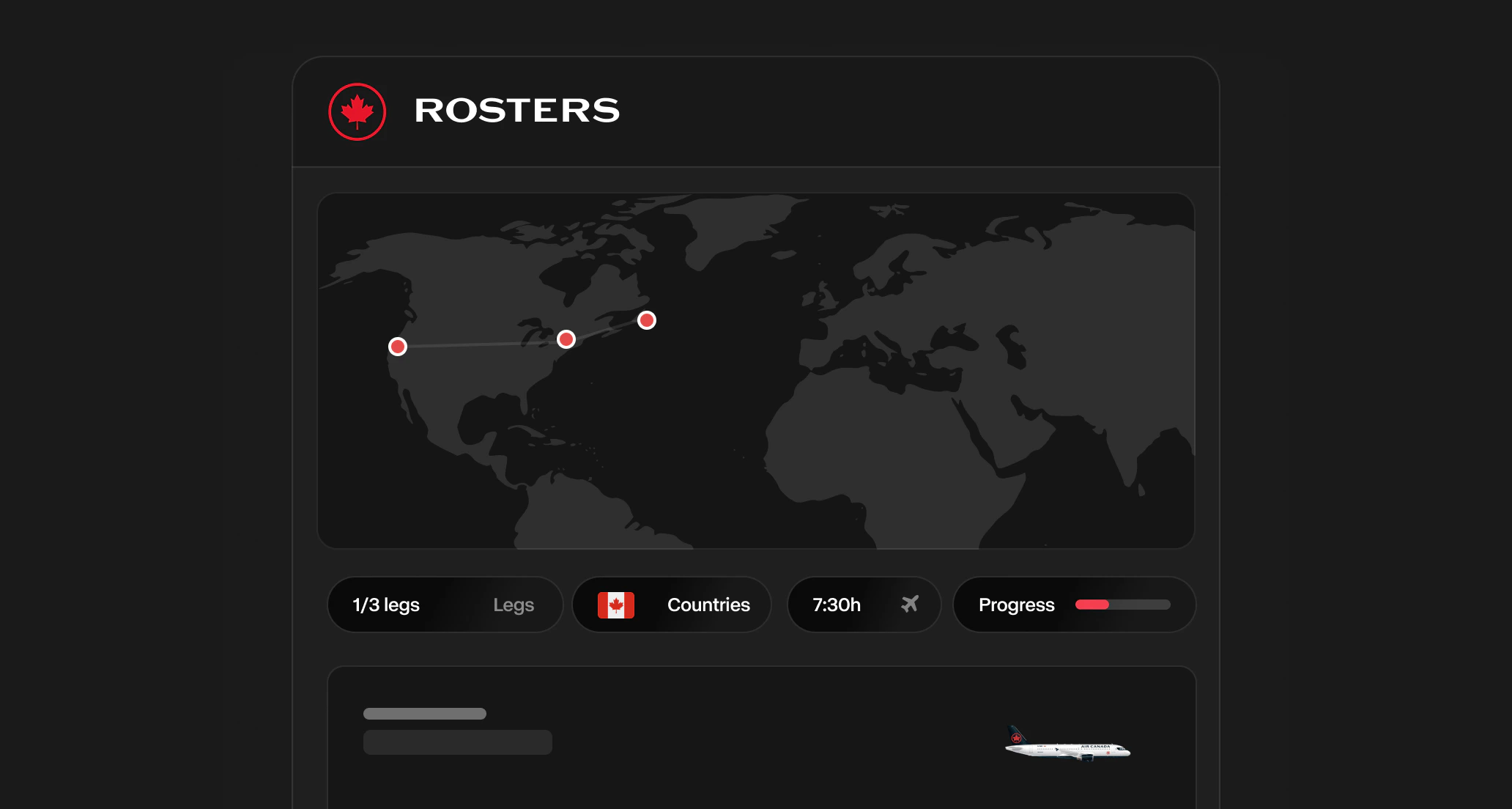
A roster is a self-generated, multi-leg flying program that lives inside Pilot Hub. Pick your parameters, save the trip, and complete each leg at your own pace while your progress is tracked automatically. You can keep as many rosters as you like, so it is fine to build a few in parallel for different aircraft or regions.
Jump straight into the Roster Generator and start building your next flying program.
## Creating a roster
## Personal Rosters
A roster is a self-generated, multi-leg flying program that lives inside Pilot Hub. Pick your parameters, save the trip, and complete each leg at your own pace while your progress is tracked automatically. You can keep as many rosters as you like, so it is fine to build a few in parallel for different aircraft or regions.
Jump straight into the Roster Generator and start building your next flying program.
## Creating a roster
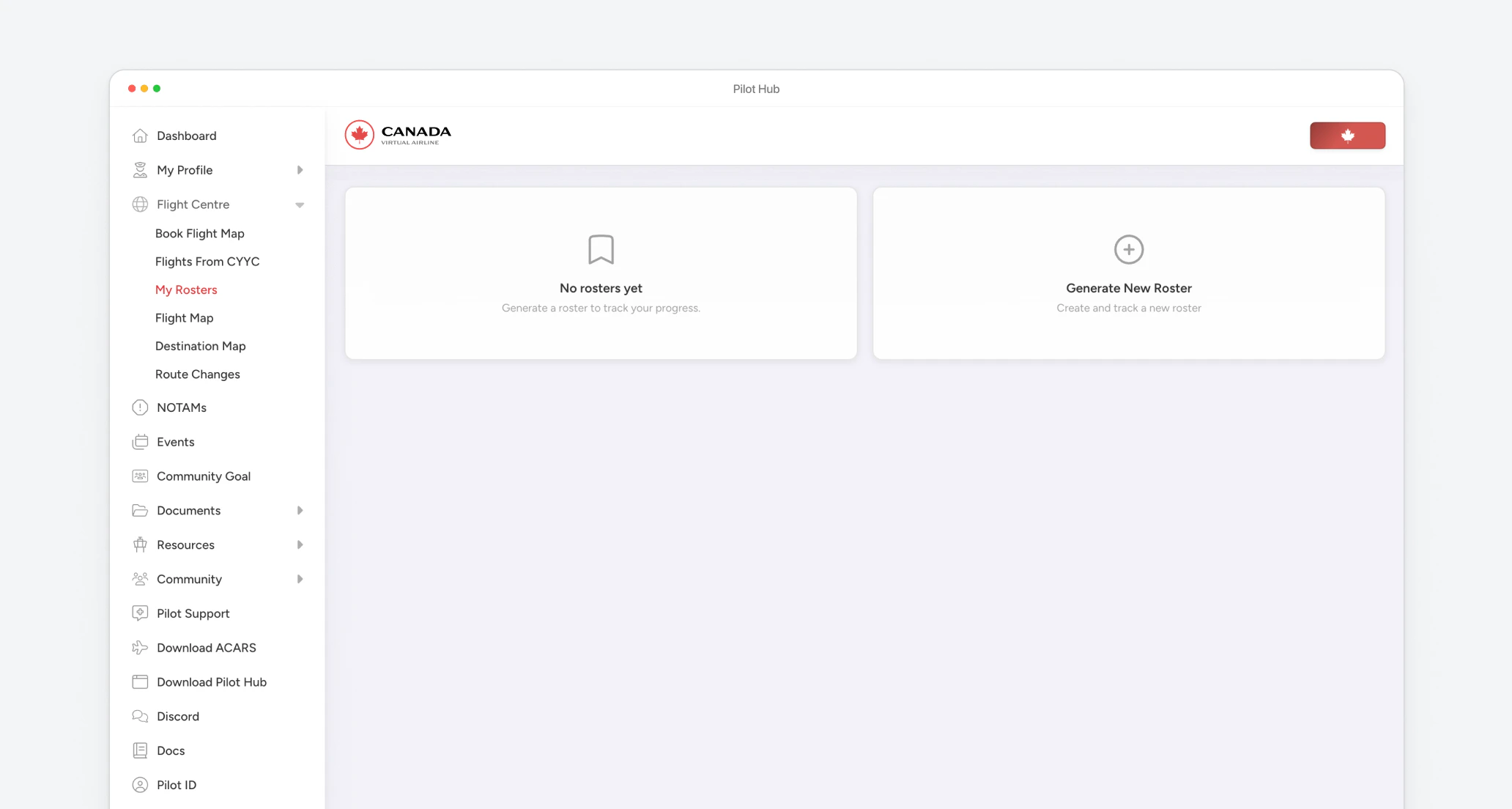
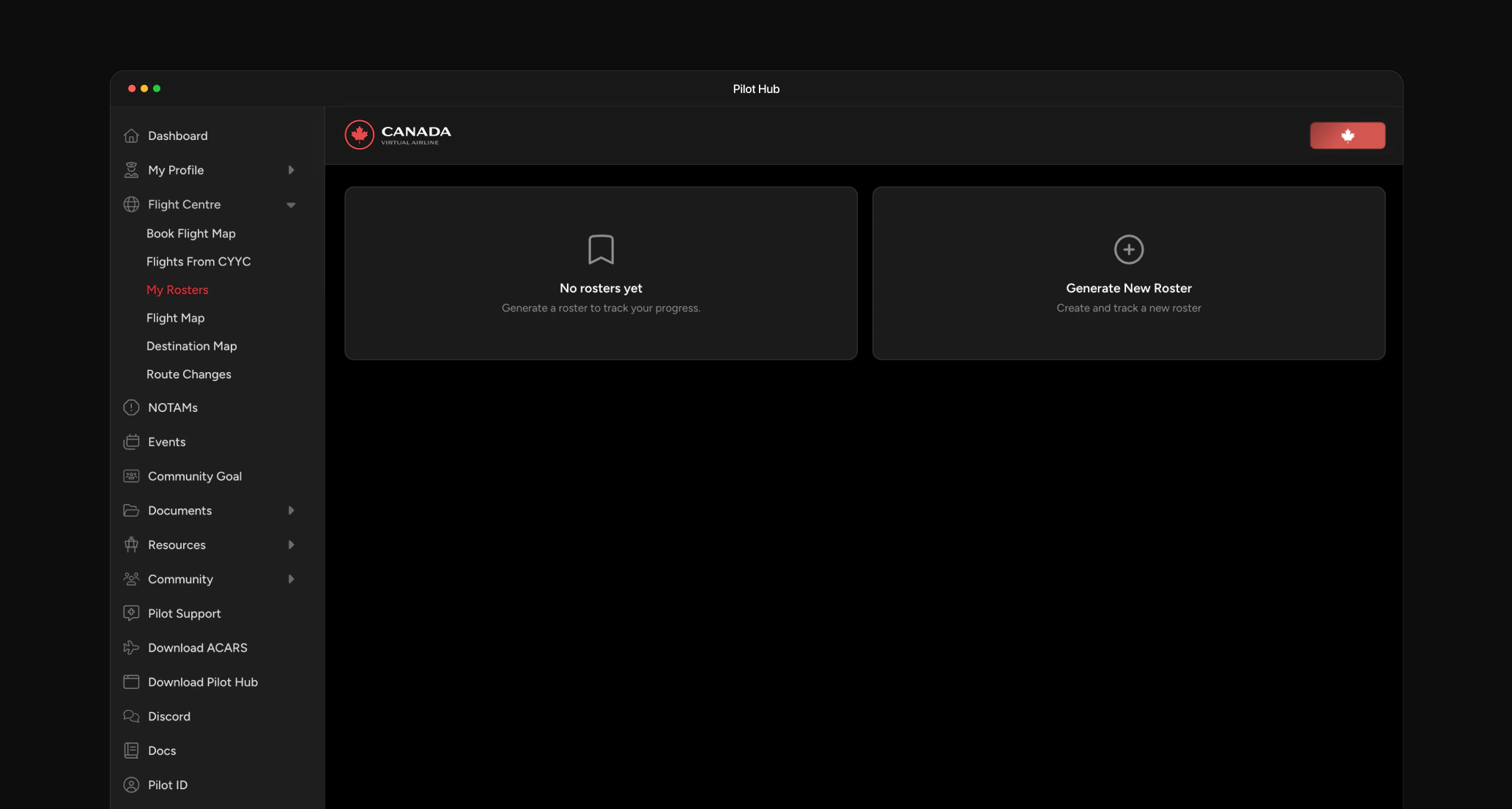 Open Pilot Hub, expand **Flight Centre** in the sidebar, then select **My Rosters**.
On the My Rosters page, click the **Generate New Roster** tile to open the Roster Generator.
Open Pilot Hub, expand **Flight Centre** in the sidebar, then select **My Rosters**.
On the My Rosters page, click the **Generate New Roster** tile to open the Roster Generator.
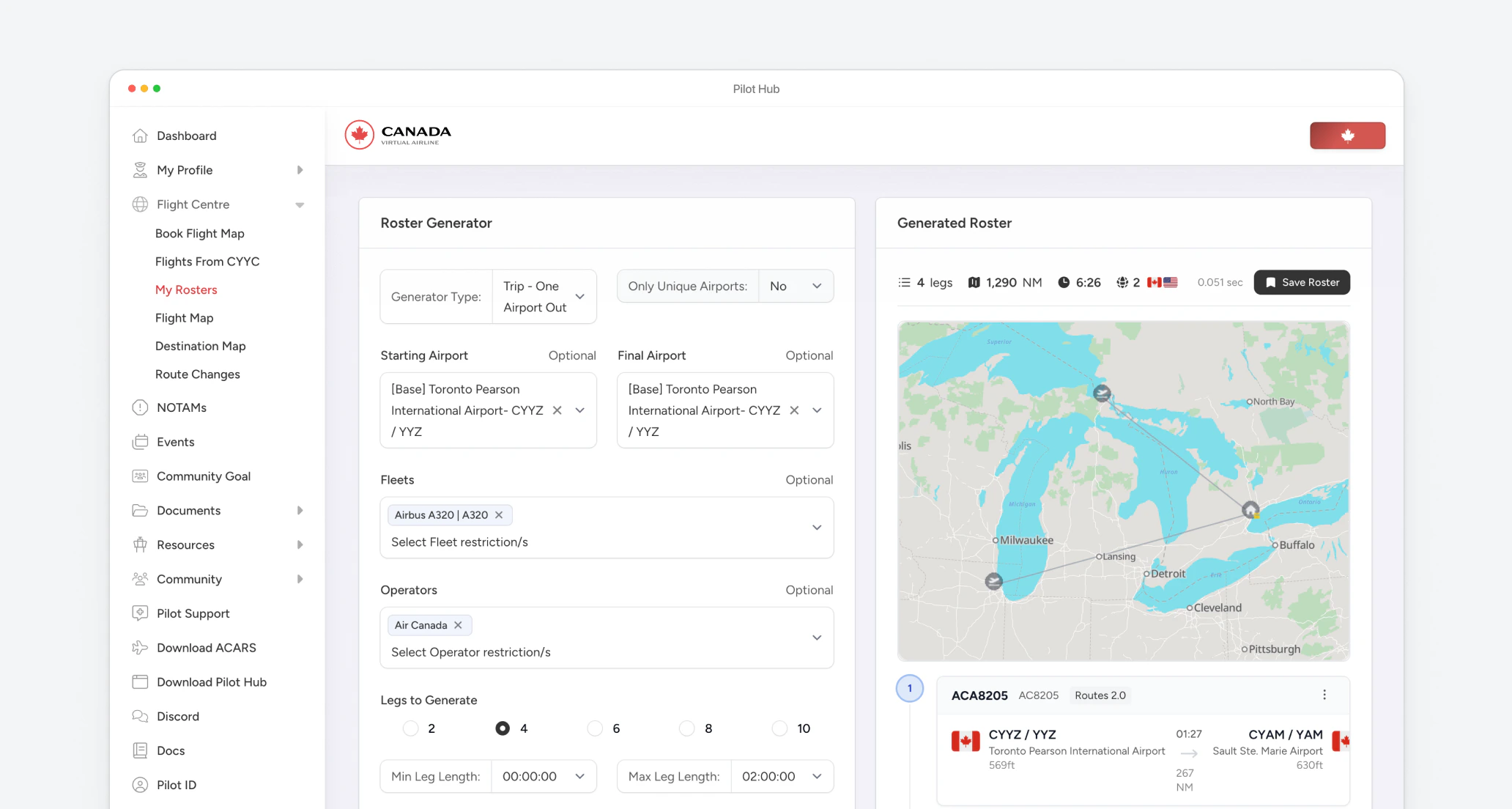
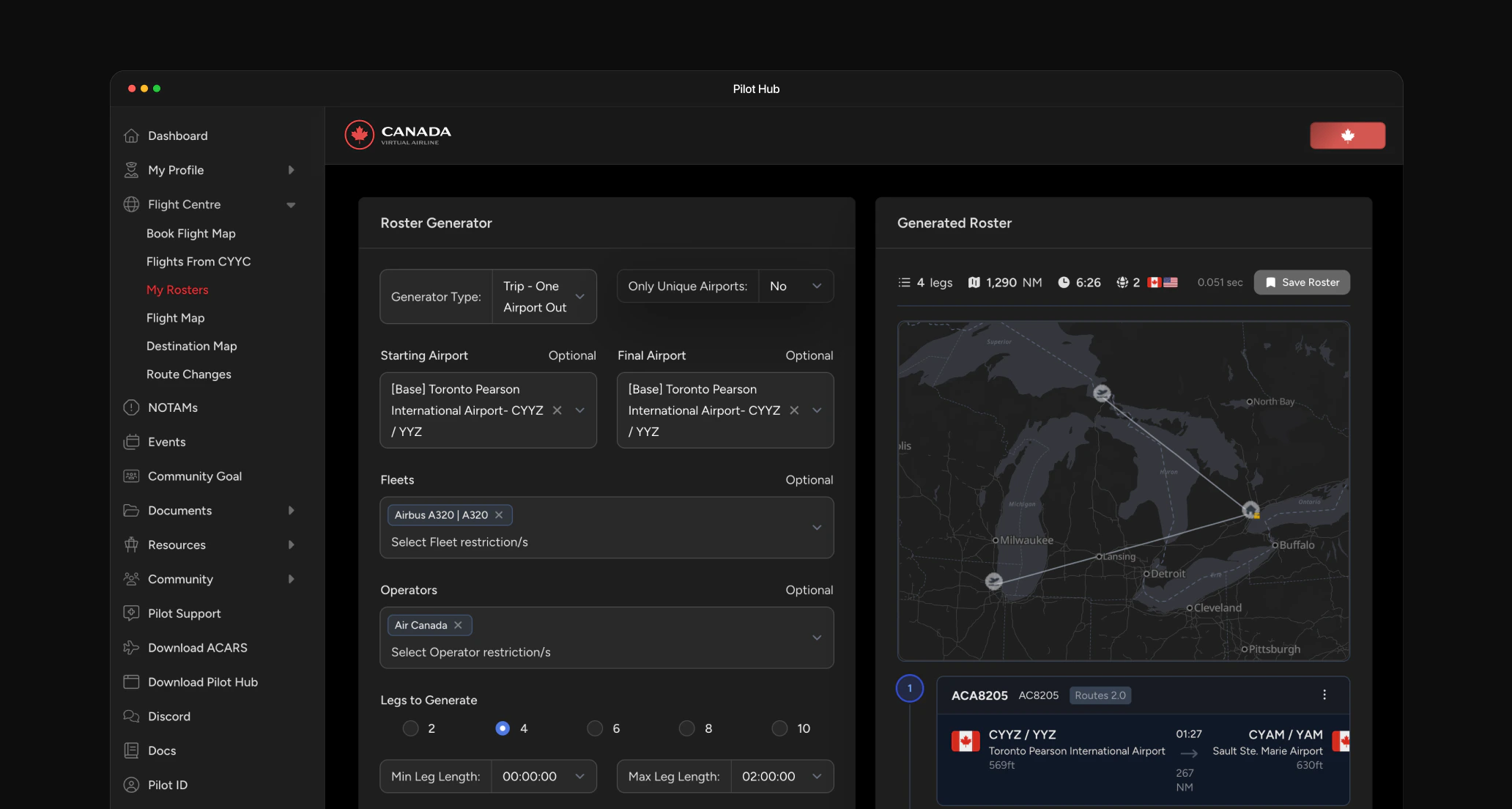 Configure the Roster Generator to match how you want to fly:
* **Generator Type**: choose one-way or return.
* **Starting Airport / Final Airport**: set your origin and, optionally, where the roster should end.
* **Fleets**: restrict the generator to specific aircraft types.
* **Operators**: limit the roster to particular operators (Mainline, Rouge, Express/Jazz).
* **Legs to Generate**: pick how many legs you want.
* **Min / Max Leg Length**: bound each leg's duration.
Review the generated route on the map preview on the right. If it is not quite what you want, tweak the parameters and click **Generate** again. The preview refreshes every time, so you can keep iterating until the roster looks right before you save it.
Leave optional fields blank for the widest selection. Tightening the filters narrows the route possibilities.
Configure the Roster Generator to match how you want to fly:
* **Generator Type**: choose one-way or return.
* **Starting Airport / Final Airport**: set your origin and, optionally, where the roster should end.
* **Fleets**: restrict the generator to specific aircraft types.
* **Operators**: limit the roster to particular operators (Mainline, Rouge, Express/Jazz).
* **Legs to Generate**: pick how many legs you want.
* **Min / Max Leg Length**: bound each leg's duration.
Review the generated route on the map preview on the right. If it is not quite what you want, tweak the parameters and click **Generate** again. The preview refreshes every time, so you can keep iterating until the roster looks right before you save it.
Leave optional fields blank for the widest selection. Tightening the filters narrows the route possibilities.
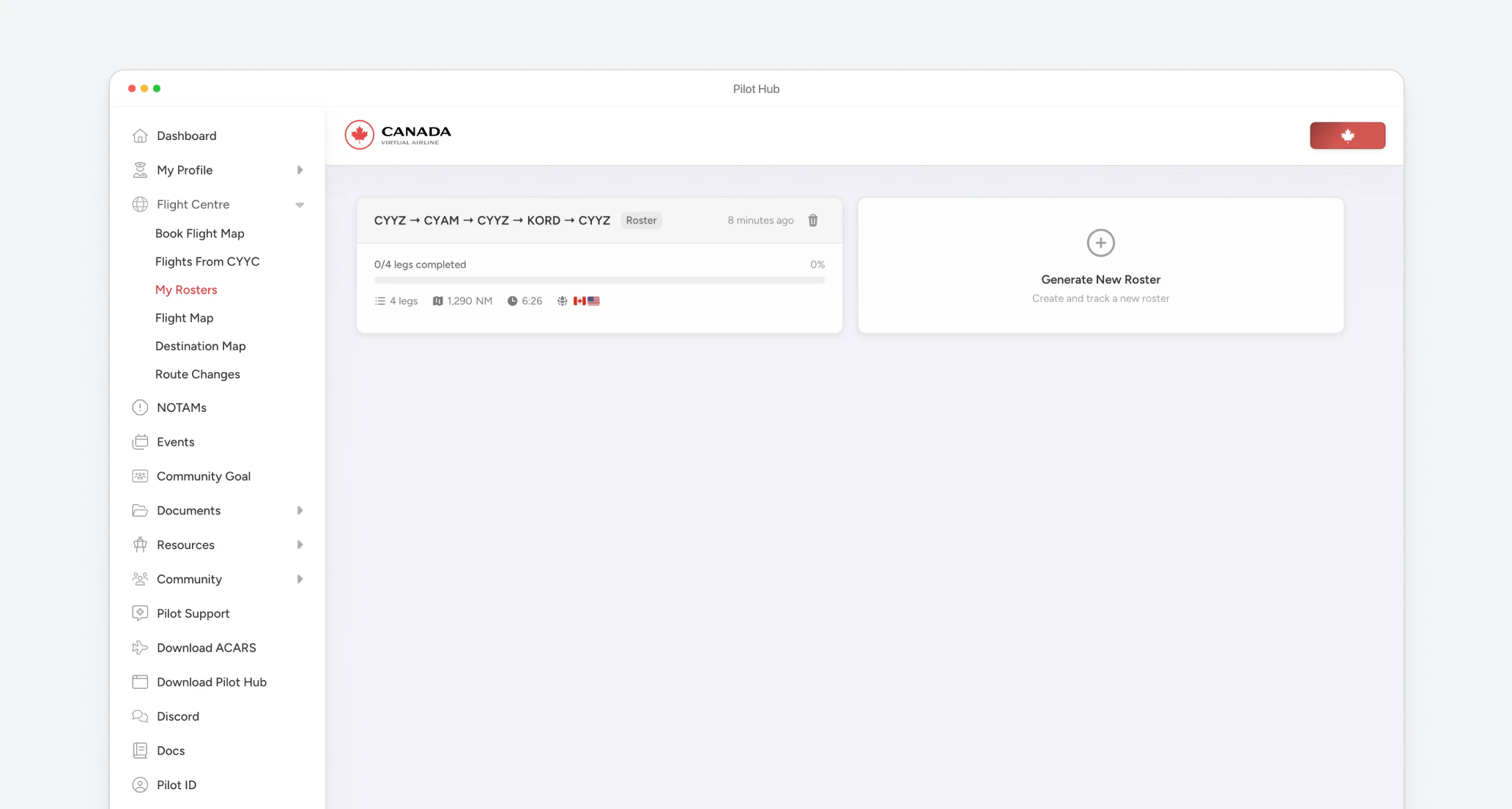
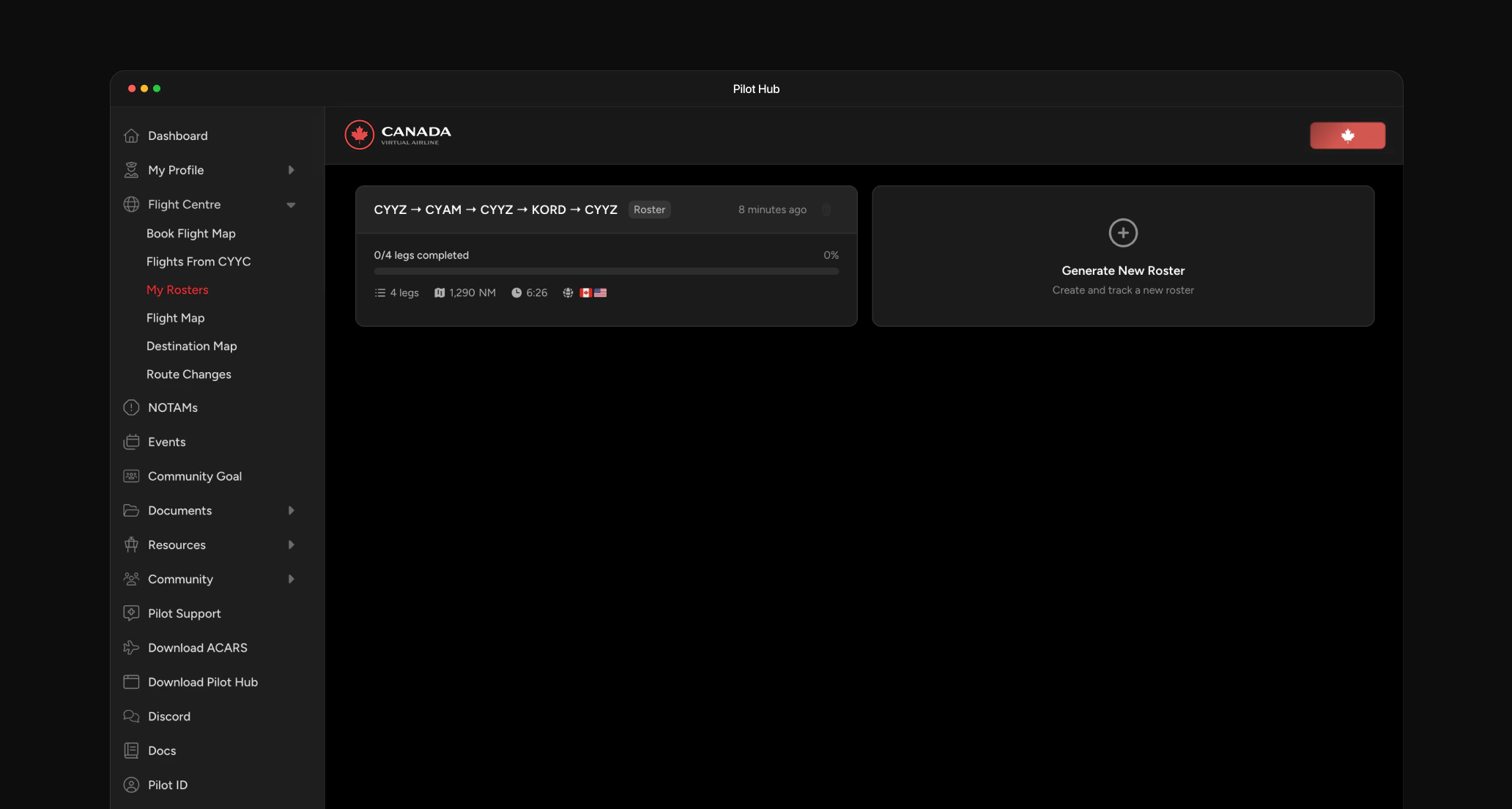 Once you are happy with the generated route, click **Save Roster**. Your new roster joins any others on the My Rosters page as a progress card showing the full route, total legs, distance, estimated duration, and a completion bar.
## Flying your roster
Once you are happy with the generated route, click **Save Roster**. Your new roster joins any others on the My Rosters page as a progress card showing the full route, total legs, distance, estimated duration, and a completion bar.
## Flying your roster
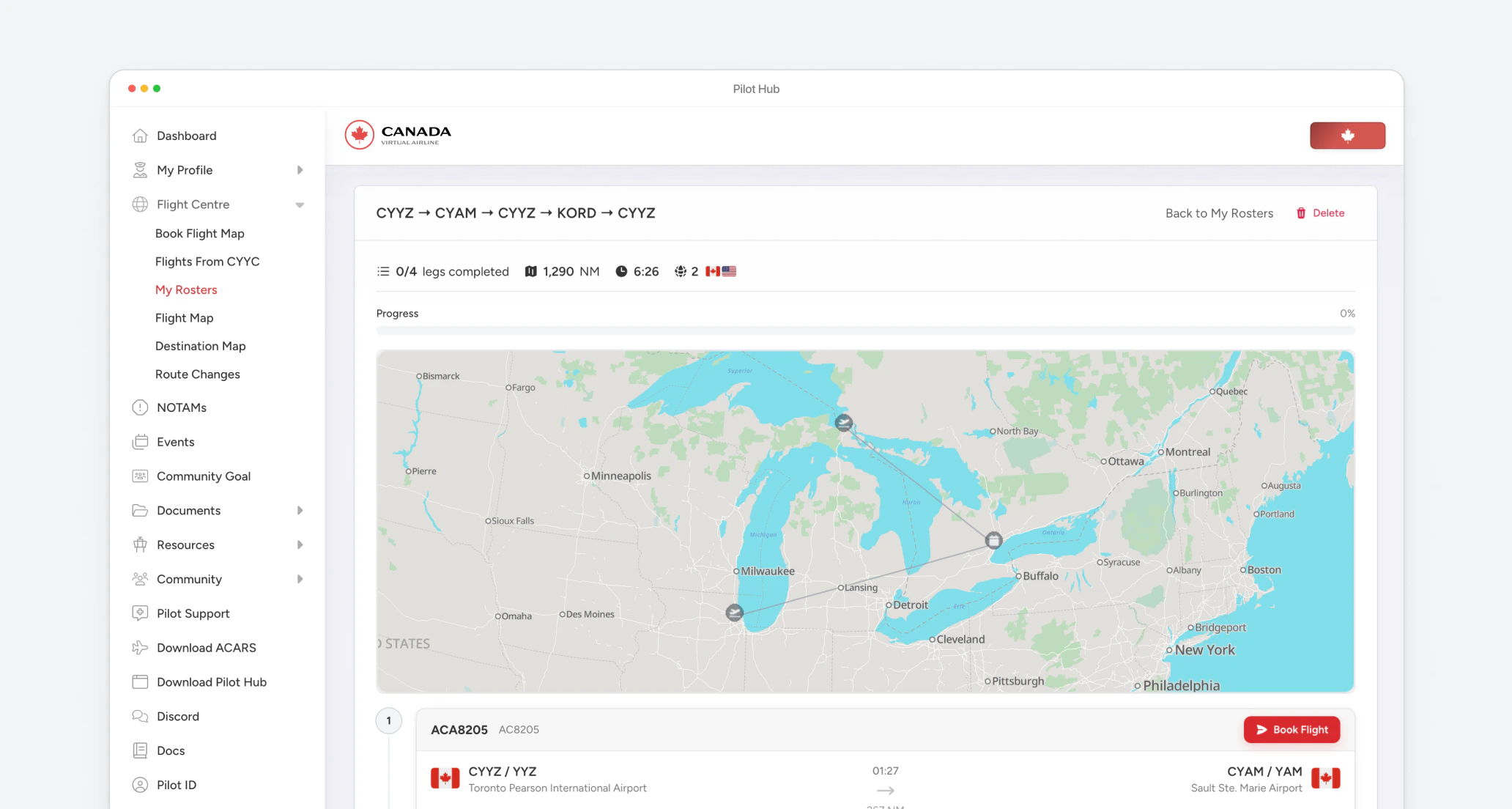
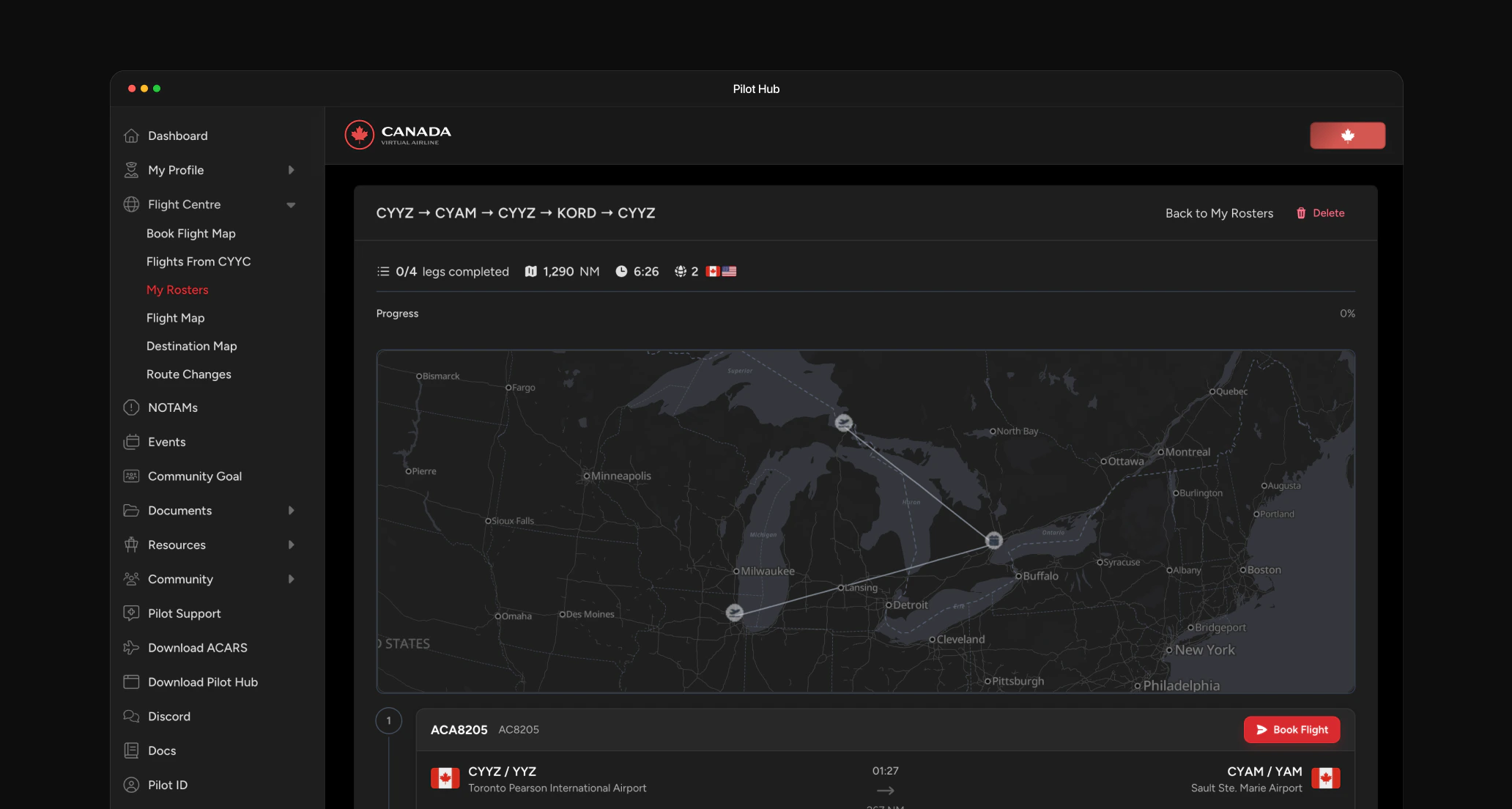 Open a saved roster from the My Rosters page to see every leg, the full map, and your progress. Each leg has a **Book Flight** button that hands off to the regular flight booking flow, so you can fly the roster at your own pace.
Rosters do not auto-book flights. Each leg must be booked individually from the roster detail view, then flown and validated like any other vACA flight.
## Need help?
If you run into issues with the Roster Generator or tracking:
* Ask in the #support channel on our Discord server
* Contact a Pilot Mentor for personalized assistance
* Submit a support ticket through Pilot Hub
Get answers to your questions in our active Discord community
Contact our support team for personalized assistance
Open a saved roster from the My Rosters page to see every leg, the full map, and your progress. Each leg has a **Book Flight** button that hands off to the regular flight booking flow, so you can fly the roster at your own pace.
Rosters do not auto-book flights. Each leg must be booked individually from the roster detail view, then flown and validated like any other vACA flight.
## Need help?
If you run into issues with the Roster Generator or tracking:
* Ask in the #support channel on our Discord server
* Contact a Pilot Mentor for personalized assistance
* Submit a support ticket through Pilot Hub
Get answers to your questions in our active Discord community
Contact our support team for personalized assistance