> ## Documentation Index
> Fetch the complete documentation index at: https://docs.canadava.com/llms.txt
> Use this file to discover all available pages before exploring further.

# Using Pilot Hub Software

> Install and navigate the Pilot Hub desktop app to manage your vACA pilot career, book flights, and track flight statistics.

export const Checklist = ({title, items, icon}) => {
  const [checked, setChecked] = useState(Object.fromEntries(items.map((_, i) => [i, false])));
  const toggle = i => setChecked(prev => ({
    ...prev,
    [i]: !prev[i]
  }));
  const done = Object.values(checked).filter(Boolean).length;
  return <div className="kb-checklist">
      <div className="kb-checklist-header">
        <div className="kb-checklist-title">
          {icon && <span className="kb-checklist-icon">{icon}</span>}
          <span>{title}</span>
        </div>
        <span className="kb-checklist-count">{done}/{items.length}</span>
      </div>
      <div className="kb-checklist-items">
        {items.map((item, i) => <button key={i} className={`kb-checklist-item ${checked[i] ? 'checked' : ''}`} onClick={() => toggle(i)}>
            <span className="kb-check-box">
              {checked[i] && <span className="kb-check-mark">✓</span>}
            </span>
            <span className="kb-check-label">{item}</span>
          </button>)}
      </div>
    </div>;
};

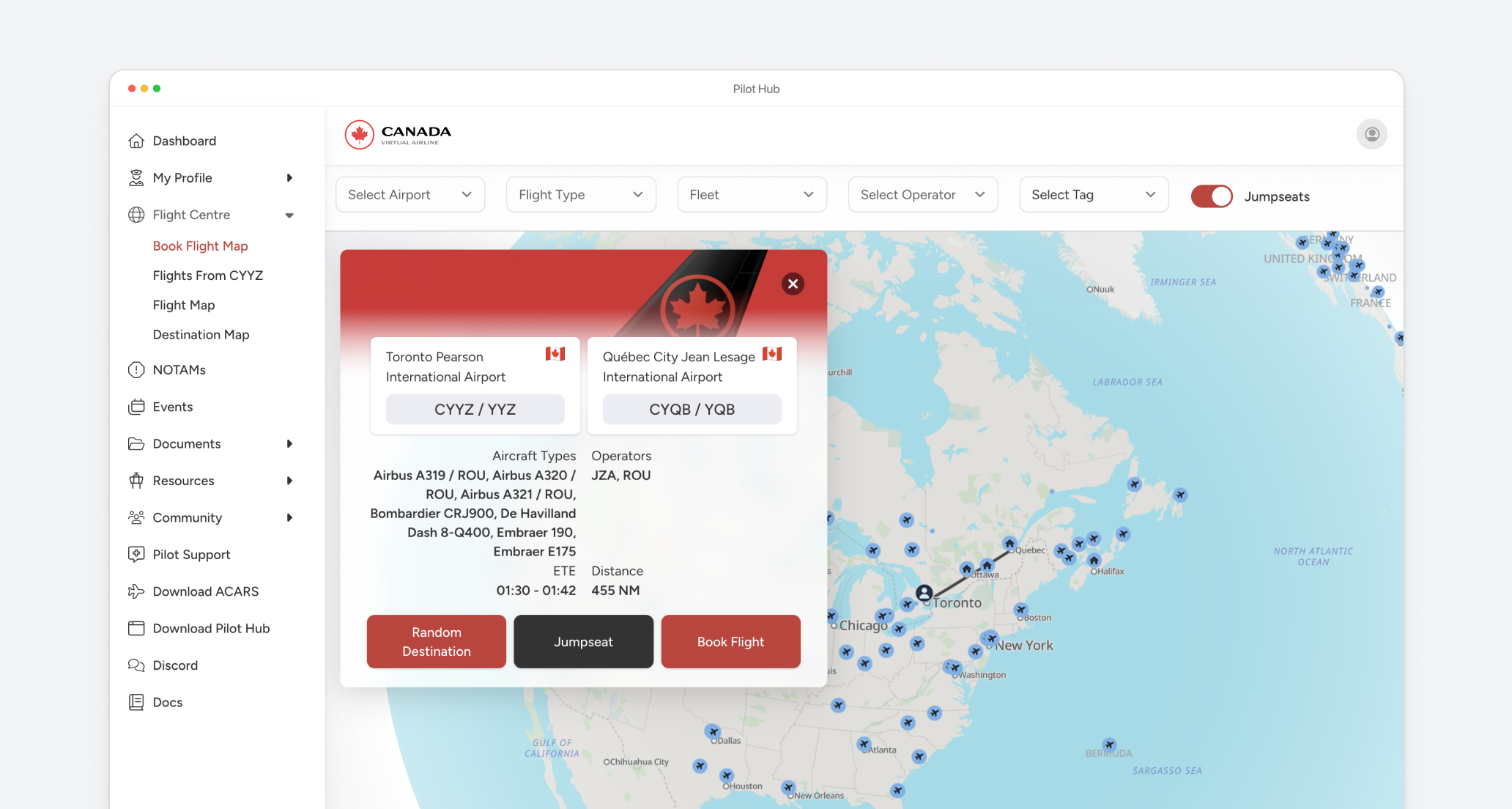
<img className="block dark:hidden" src="https://mintcdn.com/virtualaircanada/XW0ND9ztGm1uFOMi/images/essentials/pilot-portal-light.png?fit=max&auto=format&n=XW0ND9ztGm1uFOMi&q=85&s=cab786808889920e3c93df4a01ce3014" alt="vACA Hero Light" width="2064" height="1104" data-path="images/essentials/pilot-portal-light.png" />

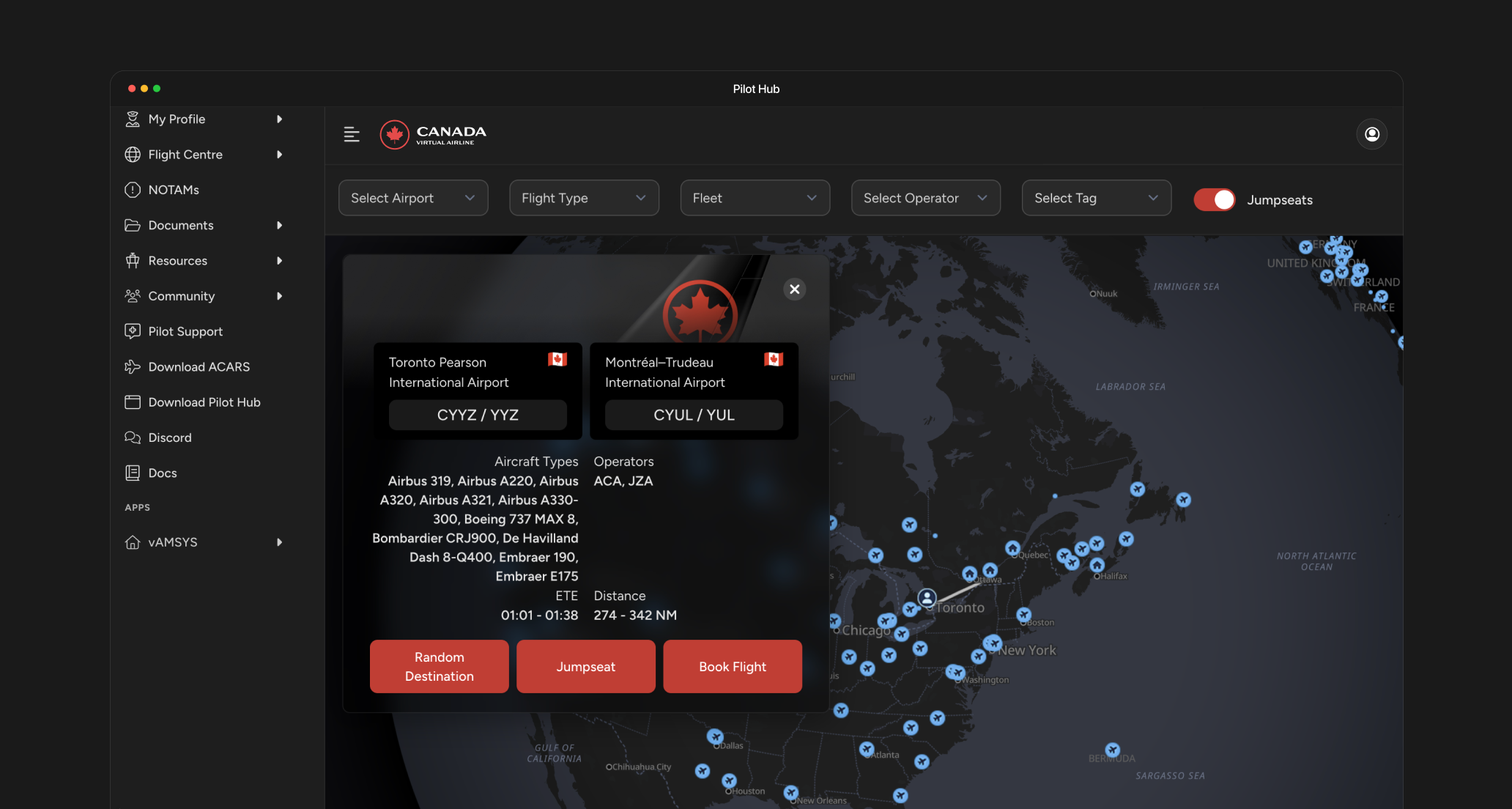
<img className="hidden dark:block" src="https://mintcdn.com/virtualaircanada/XW0ND9ztGm1uFOMi/images/essentials/pilot-portal-dark.png?fit=max&auto=format&n=XW0ND9ztGm1uFOMi&q=85&s=840a700a0197e57c456cb8518ef5bbb4" alt="vACA Hero Dark" width="2064" height="1104" data-path="images/essentials/pilot-portal-dark.png" />

## Introduction to Pilot Hub

Pilot Hub is the central desktop application for Virtual Air Canada Airline pilots. It provides a comprehensive interface for managing your virtual pilot career, booking flights, tracking statistics, and connecting with other pilots.

## Download Pilot Hub

Pilot Hub is available for Windows and macOS.

<a href="https://dl.todesktop.com/2505125540v3x9h/" className="todesktop-download-button-universal" download>
  <span>Download Pilot Hub</span>
</a>

## Installation

<Steps>
  <Step title="Download Pilot Hub">
    Download the latest version of Pilot Hub from our [downloads page](/get-started/download-software).

    Available for:

    * Windows (64-bit)
    * macOS (Intel and Apple Silicon)
  </Step>

  <Step title="Install the application">
    **For Windows:**

    1. Run the installer (.exe)
    2. Follow on-screen instructions
    3. Choose installation location
    4. Create desktop shortcut (recommended)

    **For macOS:**

    1. Open the .dmg file
    2. Drag Pilot Hub to your Applications folder
    3. Open from Applications folder (right-click and select Open on first launch)
  </Step>

  <Step title="First-time setup">
    1. Launch Pilot Hub
    2. Log in with your vACA pilot credentials
    3. Complete your profile setup if prompted
    4. Grant necessary permissions for notifications
  </Step>
</Steps>

<Checklist
  title="Pilot Hub Setup Complete"
  items={[
"Pilot Hub downloaded for your platform",
"Application installed",
"Logged in with vACA credentials",
"Profile setup completed"
]}
/>

## Main Features

<AccordionGroup>
  <Accordion title="Pilot Profile" icon="user">
    Your pilot profile contains:

    * Pilot ID and callsign
    * Current rank and progress to next rank
    * Total flight hours and flights completed
    * Awards and achievements
    * Flight history

    To edit your profile, click on your pilot avatar in the top-right corner and select "Edit Profile."
  </Accordion>

  <Accordion title="Flight Booking" icon="plane-departure">
    Book your next flight through the Flight Booking tab:

    1. Select departure airport (or use current location)
    2. Choose destination from available routes
    3. Select aircraft type from available options
    4. Choose departure time and date
    5. Review and confirm booking

    Your booked flight will appear in the "My Flights" section and will be available in <Tooltip tip="Aircraft Communications Addressing and Reporting System" cta="See glossary" href="/aops/additional-resources/glossary/acars">Pegasus ACARS</Tooltip>.
  </Accordion>

  <Accordion title="Statistics & Logbook" icon="chart-line">
    Track your progress through detailed statistics:

    * Total flights by aircraft type
    * Monthly and total flight hours
    * Landing ratings
    * Route map showing all completed flights
    * Performance metrics

    Your logbook maintains a complete record of all flights, including route details, aircraft used, and flight remarks.
  </Accordion>
</AccordionGroup>

## Getting Help

If you encounter issues with Pilot Hub:

1. Check the built-in help section (question mark icon)
2. Visit the Troubleshooting page in Settings
3. Contact support through the Help tab
4. Join our Discord server for community assistance

For immediate assistance, use the "Report Issue" feature in the Help menu to send logs and details to our support team.

<CardGroup cols={2}>
  <Card title="Discord Community" icon="discord" href="https://links.canadava.com/kgNgqfb" cta="Join Discord" arrow={true}>
    Get answers to your questions in our active Discord community
  </Card>

  <Card title="Email Support" icon="envelope" href="mailto:support@canadava.com" cta="Contact Us" arrow={true}>
    Contact our support team for personalized assistance
  </Card>
</CardGroup>
