> ## Documentation Index
> Fetch the complete documentation index at: https://docs.canadava.com/llms.txt
> Use this file to discover all available pages before exploring further.
# Booking Flights
> Book flights with Virtual Air Canada Airline using Pilot Hub - select routes, aircraft, and departure times for MSFS and X-Plane.
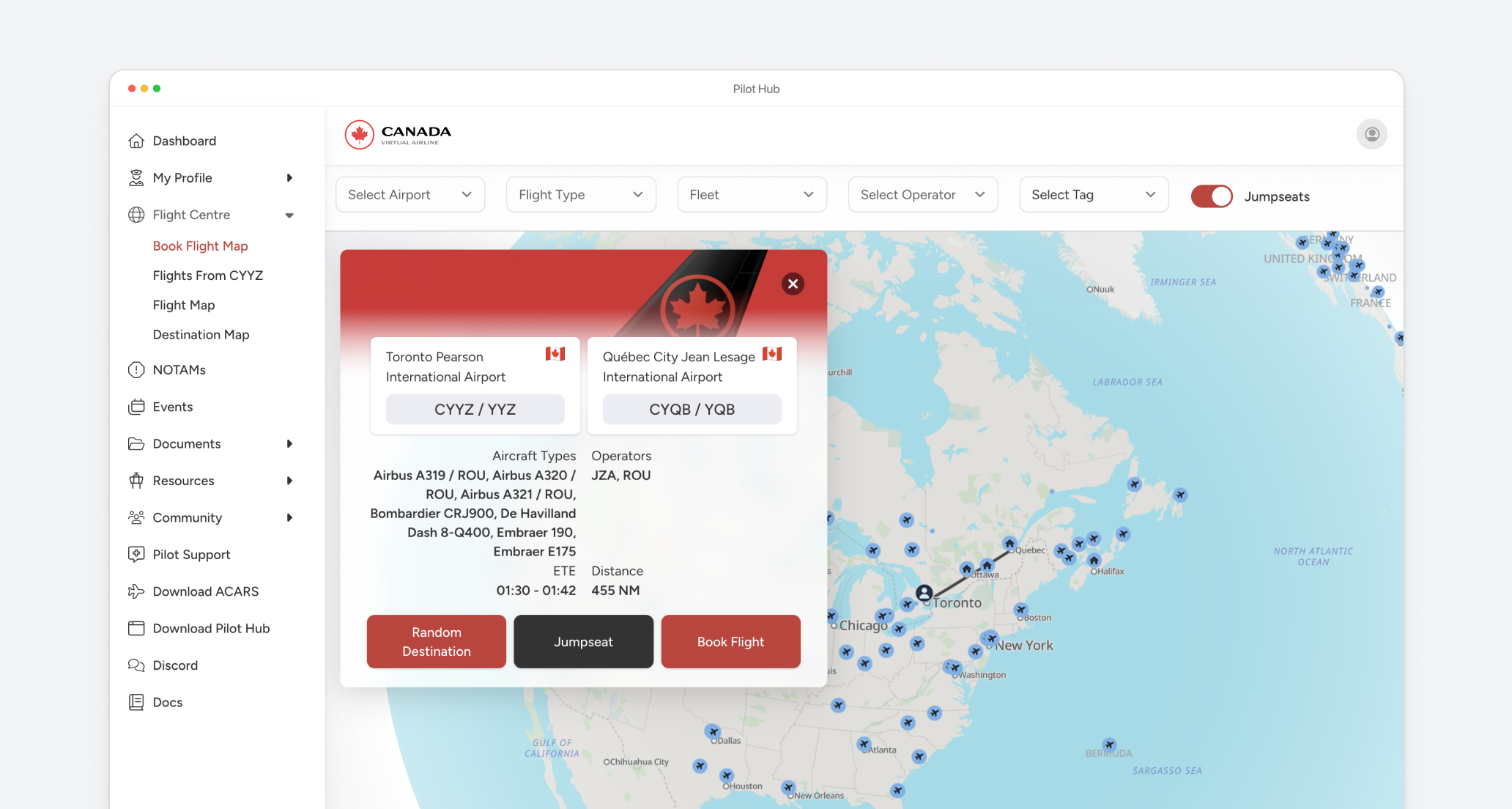
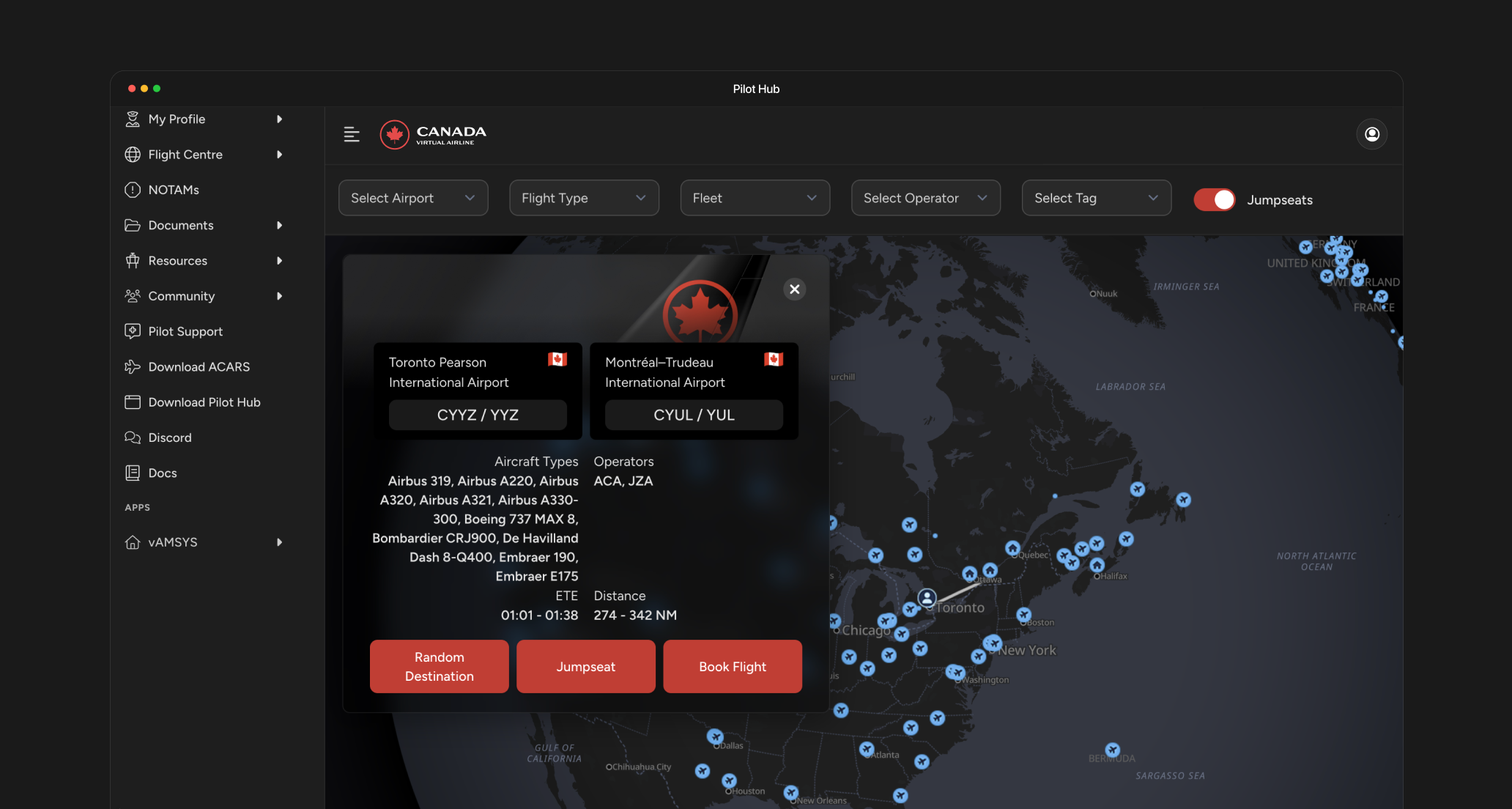 ## Flight Booking System
Virtual Air Canada Airline offers a comprehensive flight booking system that simulates real-world airline operations. This guide will walk you through the process of finding, booking, and completing flights.
## Finding Available Flights
vACA operates a route network based on real Air Canada routes, including:
* Domestic Canadian routes
* US transborder operations
* International long-haul flights
* Seasonal destinations
* Regional Express operations
The available routes are determined by your pilot rank, with more destinations unlocked as you progress.
Select from aircraft in the Air Canada fleet:
**Air Canada Mainline**
* **Widebody**:
* Boeing 777-300ER (77W) - 19 aircraft
* Boeing 777-200LR (77L) - 6 aircraft
* Airbus A330-300 (333) - 20 aircraft
* Boeing 787-9 (789) - 32 aircraft
* Boeing 787-8 (788) - 8 aircraft
* **Narrowbody**:
* Airbus A321-200 (321) - 20 aircraft
* Boeing 737 MAX 8 (7M8) - 45 aircraft
* Airbus A220-300 (223) - 34 aircraft
* Airbus A320-200 (320) - 21 aircraft
* Airbus A319-100 (319) - 3 aircraft
**Air Canada Express/Jazz**
* Bombardier CRJ900 (CR9) - 35 aircraft (operated by Jazz)
* Embraer E175 (E75) - 25 aircraft (operated by Jazz)
* De Havilland Dash 8-400 (DH4) - 46 aircraft
**Air Canada Rouge**
* Airbus A321-200 (321) - 14 aircraft
* Airbus A320-200 (320) - 5 aircraft
* Airbus A319-100 (319) - 18 aircraft
See all accepted aircraft [here](https://docs.canadava.com/aircraft/accepted-aircraft).
## Jumpseat System
By default, pilots are assigned to one of the Air Canada hub airports as their home base. However, you may want to start flights from other airports based on your preferences or to build specific routes. The Jumpseat system allows you to reposition to any airport in the network without having to fly there first.
The Jumpseat feature simulates a pilot traveling as a passenger on commercial flights to reach a new starting point:
* Access the Jumpseat option in the Pilot Hub through the "Flight Centre" → "Book Flights" feature
* Select your desired destination airport from the complete list of airports in the vACA network
* Confirm your Jumpseat request to instantly change your pilot's location
While the Jumpseat system offers flexibility, some limitations apply:
* You cannot book a Jumpseat while you have an active flight assignment
* Any airport in the vACA network can be selected as a Jumpseat destination regardless of pilot rank
## Booking Process
Follow these steps to book a flight in the Pilot Hub application:
Open Pilot Hub and select the "Flight Booking" tab from the main navigation menu.
Choose your departure airport:
* Select from a list of vACA hubs
* Choose your current aircraft location
* Search for a specific airport code
Starting from a vACA hub gives you more route options compared to non-hub airports.
After selecting your departure, you'll see available destinations:
1. Browse destinations categorized by region
2. View route details including distance and estimated flight time
3. Check aircraft types available for the route
4. Select your preferred routing (direct or with connections)
Choose an aircraft for your flight:
1. View available aircraft for your selected route
2. Check aircraft specifications and requirements
3. Aircraft availability is based on route requirements, not pilot rank - any pilot can fly any aircraft listed for the route
Ensure you have the correct aircraft model in your flight simulator before booking. Using an incorrect aircraft during the flight may result in the flight not being validated.
Set your flight details:
1. Choose a departure date and time
2. Review the flight summary (route, aircraft, estimated duration)
3. Add optional flight notes
4. Click "Confirm Booking" to finalize
## Departure Time Management
After booking your flight, you have two options for managing your departure time to align with your simulator session:
You can modify your scheduled departure time directly in the Flight Booking system:
## Flight Booking System
Virtual Air Canada Airline offers a comprehensive flight booking system that simulates real-world airline operations. This guide will walk you through the process of finding, booking, and completing flights.
## Finding Available Flights
vACA operates a route network based on real Air Canada routes, including:
* Domestic Canadian routes
* US transborder operations
* International long-haul flights
* Seasonal destinations
* Regional Express operations
The available routes are determined by your pilot rank, with more destinations unlocked as you progress.
Select from aircraft in the Air Canada fleet:
**Air Canada Mainline**
* **Widebody**:
* Boeing 777-300ER (77W) - 19 aircraft
* Boeing 777-200LR (77L) - 6 aircraft
* Airbus A330-300 (333) - 20 aircraft
* Boeing 787-9 (789) - 32 aircraft
* Boeing 787-8 (788) - 8 aircraft
* **Narrowbody**:
* Airbus A321-200 (321) - 20 aircraft
* Boeing 737 MAX 8 (7M8) - 45 aircraft
* Airbus A220-300 (223) - 34 aircraft
* Airbus A320-200 (320) - 21 aircraft
* Airbus A319-100 (319) - 3 aircraft
**Air Canada Express/Jazz**
* Bombardier CRJ900 (CR9) - 35 aircraft (operated by Jazz)
* Embraer E175 (E75) - 25 aircraft (operated by Jazz)
* De Havilland Dash 8-400 (DH4) - 46 aircraft
**Air Canada Rouge**
* Airbus A321-200 (321) - 14 aircraft
* Airbus A320-200 (320) - 5 aircraft
* Airbus A319-100 (319) - 18 aircraft
See all accepted aircraft [here](https://docs.canadava.com/aircraft/accepted-aircraft).
## Jumpseat System
By default, pilots are assigned to one of the Air Canada hub airports as their home base. However, you may want to start flights from other airports based on your preferences or to build specific routes. The Jumpseat system allows you to reposition to any airport in the network without having to fly there first.
The Jumpseat feature simulates a pilot traveling as a passenger on commercial flights to reach a new starting point:
* Access the Jumpseat option in the Pilot Hub through the "Flight Centre" → "Book Flights" feature
* Select your desired destination airport from the complete list of airports in the vACA network
* Confirm your Jumpseat request to instantly change your pilot's location
While the Jumpseat system offers flexibility, some limitations apply:
* You cannot book a Jumpseat while you have an active flight assignment
* Any airport in the vACA network can be selected as a Jumpseat destination regardless of pilot rank
## Booking Process
Follow these steps to book a flight in the Pilot Hub application:
Open Pilot Hub and select the "Flight Booking" tab from the main navigation menu.
Choose your departure airport:
* Select from a list of vACA hubs
* Choose your current aircraft location
* Search for a specific airport code
Starting from a vACA hub gives you more route options compared to non-hub airports.
After selecting your departure, you'll see available destinations:
1. Browse destinations categorized by region
2. View route details including distance and estimated flight time
3. Check aircraft types available for the route
4. Select your preferred routing (direct or with connections)
Choose an aircraft for your flight:
1. View available aircraft for your selected route
2. Check aircraft specifications and requirements
3. Aircraft availability is based on route requirements, not pilot rank - any pilot can fly any aircraft listed for the route
Ensure you have the correct aircraft model in your flight simulator before booking. Using an incorrect aircraft during the flight may result in the flight not being validated.
Set your flight details:
1. Choose a departure date and time
2. Review the flight summary (route, aircraft, estimated duration)
3. Add optional flight notes
4. Click "Confirm Booking" to finalize
## Departure Time Management
After booking your flight, you have two options for managing your departure time to align with your simulator session:
You can modify your scheduled departure time directly in the Flight Booking system:
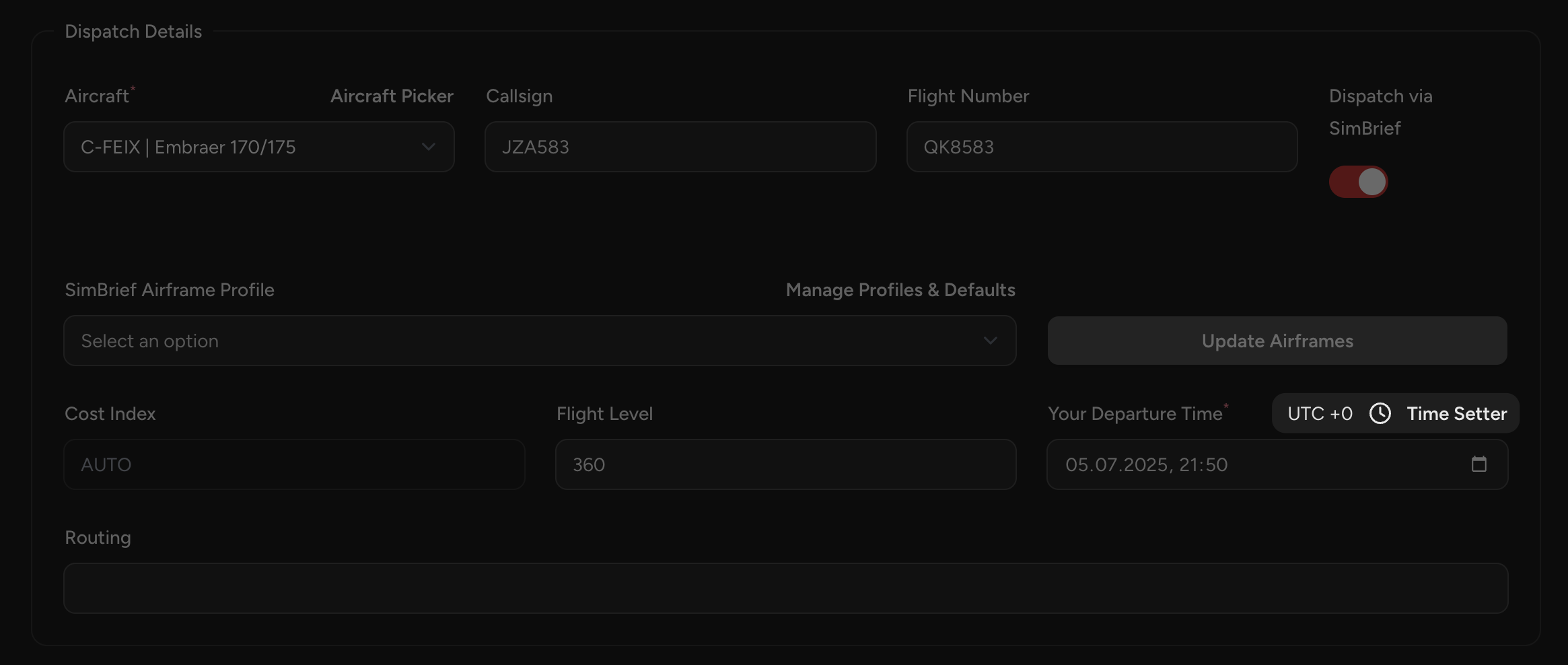 Navigate to the "Dispatch Details" section in your flight booking interface.
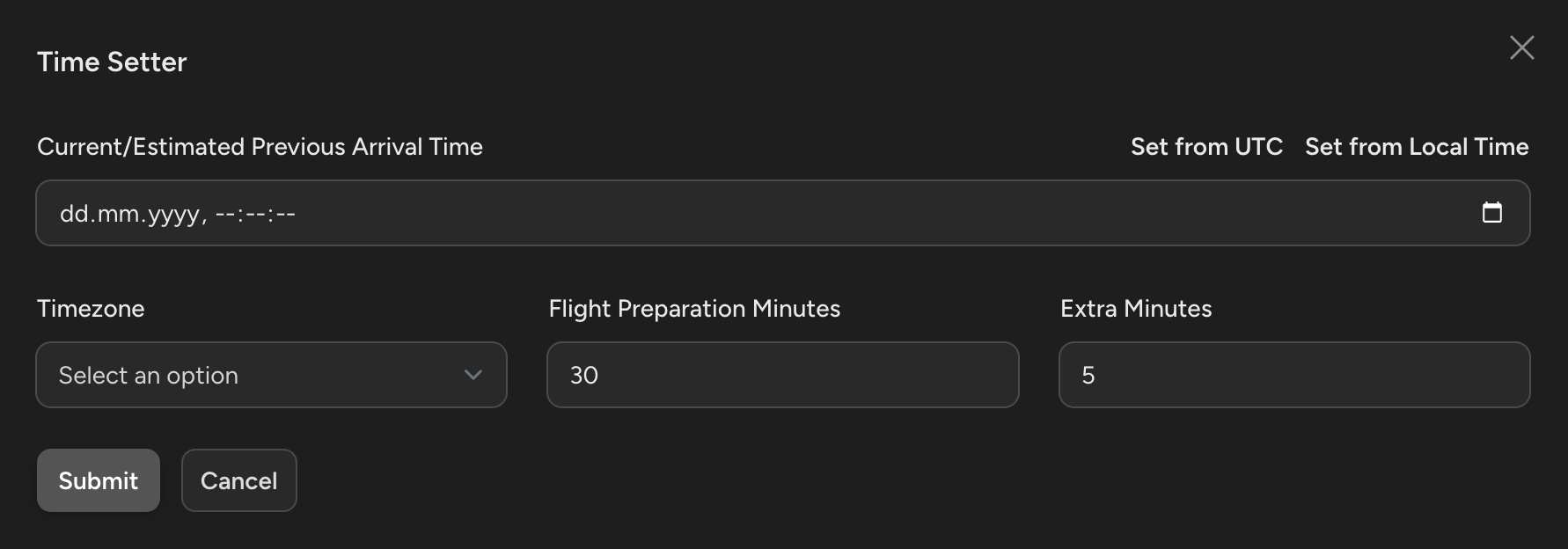 Click on the "Time Setter" option to access departure time controls.
Adjust the following parameters:
* **Departure Time**: Set your preferred departure time
* **Flight Preparation Time**: Allow time for pre-flight procedures
* **Extra Minutes**: Add buffer time for unexpected delays
This method is ideal when you want to maintain realistic world time in your simulator while scheduling flights at convenient times.
Alternatively, you can adjust your flight simulator's time to match your booked departure:
* Set your simulator's time and date to match your scheduled departure
* This maintains the authenticity of flying at the actual scheduled time
* Particularly useful for flights with specific lighting conditions (sunrise/sunset departures)
## Flight operations
Once you've booked your flight, review the Pilot One-pager for essential information on flight procedures, time acceleration rules, and prohibited actions.
Quick reference guide covering gate-to-gate procedures, simulator settings, and rules to ensure your flight is validated.
## Need help?
If you encounter issues with flight booking or operations:
* Ask in the #support channel on our Discord server
* Contact a Pilot Mentor for personalized assistance
* Submit a support ticket through Pilot Hub
Get answers to your questions in our active Discord community
Contact our support team for personalized assistance
Click on the "Time Setter" option to access departure time controls.
Adjust the following parameters:
* **Departure Time**: Set your preferred departure time
* **Flight Preparation Time**: Allow time for pre-flight procedures
* **Extra Minutes**: Add buffer time for unexpected delays
This method is ideal when you want to maintain realistic world time in your simulator while scheduling flights at convenient times.
Alternatively, you can adjust your flight simulator's time to match your booked departure:
* Set your simulator's time and date to match your scheduled departure
* This maintains the authenticity of flying at the actual scheduled time
* Particularly useful for flights with specific lighting conditions (sunrise/sunset departures)
## Flight operations
Once you've booked your flight, review the Pilot One-pager for essential information on flight procedures, time acceleration rules, and prohibited actions.
Quick reference guide covering gate-to-gate procedures, simulator settings, and rules to ensure your flight is validated.
## Need help?
If you encounter issues with flight booking or operations:
* Ask in the #support channel on our Discord server
* Contact a Pilot Mentor for personalized assistance
* Submit a support ticket through Pilot Hub
Get answers to your questions in our active Discord community
Contact our support team for personalized assistance